
I recently got Unifi, Telekom Malaysia’s High Speed Broadband service. It’s been awesome so far, but I realized the default configuration that TM installers set up is pretty unsecure. In this article, I’ll show you some essential steps you need to take to protect your Unifi network at home.
Why is the default configuration unsecure?
First, let’s have a look at why you need to protect your network. Or if you’re impatient, jump to the solution.
1. The router uses a default admin password (which is public knowledge)
The D-Link DIR-615 (the orange box) that TM supplies comes with a default password which anyone can find. Just try Googling for “dir-615 default password“.
2. There’s a 2nd ‘secret’ account to the router that many aren’t aware of
Yup, even I wasn’t aware of this – and I’m quite a techie. This 2nd operator account is meant for technicians to easily access your router if you forgot your admin password. Hat tip to the Unifi Handbook for pointing this out to me.
3. Your Unifi username is broadcast for all to see by default
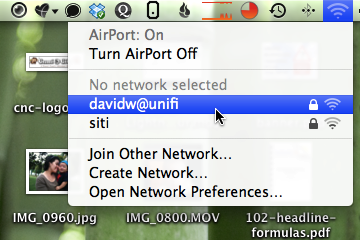
If you see a WiFi network like the highlighted one above, you know that 1) it’s a Unifi network and 2) the username isdavidw.
Don’t bother, that’s not my real Unifi username 🙂
4. Your default wireless network password is on the bottom of the router
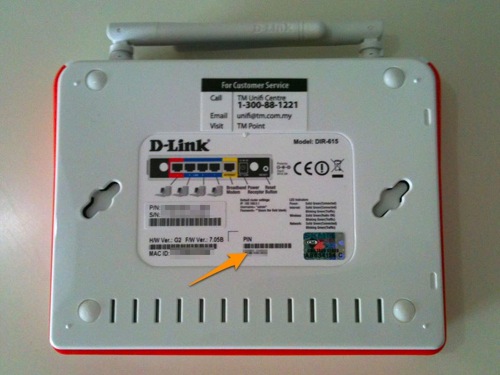
’nuff said.
5. TM sends you all your passwords via email
In your Unifi registration confirmation email, TM sends you all your passwords, unencrypted. This doesn’t directly affect your wireless network, but it’s just super insecure.
In summary, the combination of the above is like leaving your house unlocked — not very safe. It’s an invitation to hackers to get into your network and use your broadband for free. Worse, hackers can monitor your traffic, steal your passwords, credit card & bank info, etc. Sounds dramatic but it can really happen!
Secure your router settings
Ok, let’s lock down that Unifi network!First, connect your laptop directly to the router (the orange box). You can do the following on a wireless connection too, but you will be disconnected when making changes and need to re-connect.
Step 1: Change the default router passwords
Open up a web browser (e.g. Firefox) and go to this address: http://192.168.0.1. You’ll see the login screen to the router’s admin like below.
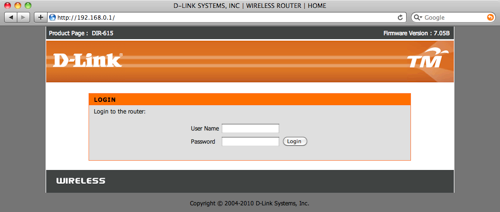
Login as operator. Here are the default passwords for operator, courtesy of the Unifi handbook:
telekom
h566UniFi
Once logged in, click on the Maintenance tab (at the top). You will then see a screen called Administrator Settings where you can change both the Admin and Operator password. (If you logged in as admin, you won’t see the option to change the operator password).
Change it to something that has 6 characters or more that includes numbers and letters. Write that down somewhere and keep it safe. Click Save Settings.
Congrats, you’ve just changed your router’s default passwords.
Step 2: Change your Wireless Network name and password
Next, click on the Setup tab. Then click on Wireless Setup in the sidebar.
The first thing we want to do is to change the SSID a.k.a. Wireless Network Name. Click on the Multiple Wireless Network Name Setup button (at the bottom of the screen).
On the next page, change the Wireless Network Name to something else, e.g.:
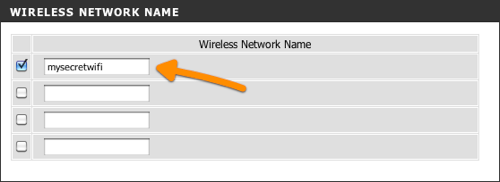
Don’t forget to save your settings.
Finally, we want to change the default wireless password. Go back to Setup » Wireless Setup and click the Manual Wireless Connection Setup button.
On the Wireless Network page, scroll all the way down and change the WPA/WPA2 password.
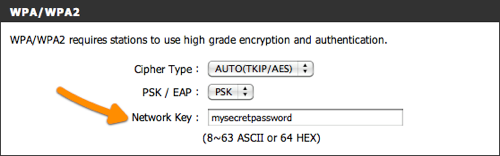
Click on Save Settings. Awesome, you’ve changed your wireless network name and the password. Because you’ve changed the network name and password, your laptop, iPhone and other devices will no longer be able to connect to your old network. Just add this new network and everything will work again as normal.
Don’t take security lightly
I’m sure that you lock your car, your house door and don’t leave your mobile phone lying around unattended. In the same way, if you have a wireless network at home, it’s your responsibility to keep it secure.
Those of you who are more technically inclined can check out the Unifi Handbook for more info and tips on securing your home network. A big thanks to rizvanrp who put the site together.
Finally I hope that you found my tutorial useful. Please tweet or share this article on Facebook. If you have questions, please ask me in the comments. Thanks!



If i not using wireless router, need i to change the password?
Yes, you should change the default password to be safe. BTW all Unifi package comes with wireless router.
i cant login even though i use admin as username and password is blank..
You misunderstood the instructions. Read the article again carefully. The password is not blank, and the username is not admin.
The router uses a default admin password (which is public knowledge)
Link says Default = admin and Password = blank
Why do u say “You misunderstood the instructions”
That’s because my post contains instructions for TM Unifi’s router, not for the stock D-Link DIR-615 router.
so then what is the password and username ??
thanks a lot 😀
I need to connect my blackberry to my unifi’s wifi and i need to enter a PIN that’s created by my blackberry. In order to do that, i need to enter the pin into my wireless router. How do i do that?
Can’t help you – I don’t use a BlackBerry :/
I just discover the solution to this,
1. log on to 192.168.0.1
2. at wireless setup, press manual wireless connection setup
3. at “Wi-Fi Protected Setup”, press “add wireless device with WPS”
4. Enter pin
5. press connect
this is actually my theory, I don’t have any blackberry with me currently. But you can try. Tell me if it works.
Ah i see. Im not much as a techie though. But can you help? Im such a noob. 🙁
i try click http://192.168.0.1.
i use username : operator , pasword: operator
but User Name or Password is incorrect.?? why
so how to use bro…
The operator password isn’t operator la..
ok bro thanks….semua dh setting…hehe btw hacker cant trace my password unifi write ?
I’m not an expert on this but if they want to I think the expert hackers can still figure it out.. But at least you make it harder for them.
which username and which password should i type in to change the wifi name? there is so many kind of usernames and passwords that unifi sent me thru email. i tried to key in all username and passwords but cant =(
Hi David,
I get 404 Not Found Page error when I go to 192.168.0.1. Why is that?
That means 192.168.0.1 is not the router address. Try 192.168.1.1 or 10.0.0.1. Otherwise look in your network devices for router or gateway IP.
Hi David,
No dice. I did ipconfig and default gateway is 192.168.0.1. Any other idea?
That’s strange. Sorry I can’t provide tech support so you’ll need to contact TM.
No problem David, thanks anyway.
David,
OK now, just a matter of restarting the router.
this is what i recommend.
By using your browser, go to http://192.168.0.1 (by default) to the wifi administration page.
1. Change the ‘admin’ password – by default the wifi router comes with admin id and no password configured… so.. sendiri mau ingat la when your wifi router without admin password. You can configure it at ‘Maintenance’ tab and ‘Device Administration’
2. Change the SSID Name – by default the SSID name is @unifi, so people knows that it is a default setting by Unifi and can play around with it. You can change the SSID name at ‘Setup’ tab and ‘Wireless Setup’ under ‘Wireless Network Name’.
3. Change the Wifi Security Key – by default, it was not configured; and if configured, it used the 8 digit numeric pin only which can be easily being cracked by people like me. To do this, go to ‘Setup’ tab and ‘Wireless Setup’ under ‘Wireless Security Mode’ change to ‘Enable WPA/WPA2…’ and key in your WPA/WPA2 Network Key.
4. Enable WAN to LAN Firewall – by default, this was not enable. So, your wifi router was not protected by any firewall. To enable the firewall features, go to ‘Advance’ tab and ‘Firewall & DMZ’. Just tick the ‘Enable WAN to LAN Firewall’
5. Block WAN Ping Responce, Block FTP, Block Telnet and what so ever. From the step 4 above, just enable a few other extra security features as described. It will enhance your firewall security.
6. Change Wireless Bandwidth Frequency to 20MHz – By default, it was configured with 20/40-Mhz Auto. This what I’ve discovered. If the bandwidth frequency is 20/40Mhz, the wifi signal is very weak and the distance shorter. I’ve placed my wifi router in the living hall and couldn’t connect from my room, so once I’ve change to 20Mhz, I found that the signal is stronger and easily manage to connect with ease. You can change the Wireless Bandwidth Frequency at ‘Advance’ tab and ‘Advance Wireless’, change the bandwidth to 20Mhz only.
Lastly, if you don’t like the wifi router provoded by TM and you want to replace it with your own wifi router..emmmm basically you can’t because you need to but a special wifi router with Vlan capabilities. Yes you can replace with your own but the IPTV won’t work with ordinary wifi router. So, you need to find wifi router with Vlan features where vlan.500 is for internet and vlan.600 is for the IPTV. Not many wifi router models available in the market now. As far as I’m aware off, only 1 model from TP-Link (TL-WR841N) but you need to patch with a special firmware that can support the vlan.600……. so kene tunggu dulu la….
Okla.. that’s all folks…. enjoy your Unifi.. and for those who don’t subscribe yet to Unifi….. get it now…
what u means by reverse order..can give more example?
Hi David,
I was following your steps but after I changed the router password, the router reboot and I got dc. After that I can no longer open http://192.168.0.1. and now my unifi connection’s no longer working! What should I do?
Reset your router to revert it to factory condition. Use a paperclip to press the reset button for 10 seconds (the router needs to be on). The lights will flash orange and then it will be reset.
hey David,
I managed to change my Unifi Username. But when it comes to step 2 “Manual Wireless Connection Setup”, the D-Link System page lost. I try to log in again using the same username and password : operator – h556UniFi, it said, username and password incorrect. Now my wifi name has changed no longer sophia@unifi, but the password is still the old password. What should I do?
Please help. Thanks.
You are confused, you cannot change your Unifi username from the router. You can only change your Unifi username at TM Point.
You also didn’t change your router username – you can still login with admin or operator. But maybe you changed the password.
If you really can’t figure it out, reset your router back to factory condition. See my answer to Hui (right before your comment).
Hi David,
Sorry that I confused you. What I mean is that I did the step 1, meaning, I changed my wifi name from “sophia@unifi” to new name. after doing that, I follow step 2, “manual wireless connection setup”, the browser lost the connection. then i start again by entering the username and password that i did for the first time. It says, username and password in correct… sigh.
Oh i see. Since you changed your WiFi name to new name, you must now connect to the new name wifi network. If not, just plug a network cable from your computer into the no. 1 port on the back of the router.
If you really can’t figure it out, use a paperclip to press the reset button for 10 seconds (the router needs to be on). The lights will flash orange and then it will be reset. Your router will go back to the factory settings.
thanks for your quick respond David.
I guess, I will get someone to help me with this. I’m afraid that my connection lost. I already changed my Wifi name should be somehow safer than using the @unifi Wifi name. 🙂
I appreciate your help. will get my friend for help. Many thanks again.
Hi David.
Kindly help: I did resetting my router and used the wizard to set up the wifi.Everything seemed okay, all lights on the router are ok..but my internet connection is limited. I only get the LAN connection wirelessly. FYI, the TV, phone are all running fine. Shed some light into this..pls .TQVM
Hirul,
u set it wrong.. make sure ur username is xxxxxx@unifi
must have the ( @unifi ). Hope this help…
cheerz
i got a brand new dir-615 but can’t open operator with the three passwords listed as ‘telekom’, ‘h566UniFi’ or ‘username in reverse. Have TM changed to a new password?
Same here .. Just got the Unifi Set from TM .. unable to login using operator with 3 passwords above ..
Hi I was just wondering, you said if I were to change the name of my unifi wifi,it has to be done at unifi tm point? is that correct or I can just change my unifi wifi name on the dLink website?
No, you change the wifi name (SSID) through your dlink router by going to http://192.168.0.1 in your web browser. Go to TM Point if you need more specific details 🙂
I have a problem…..I have my unifi and password correct……And when i connect my Iphone to unifi I key in the Correct password Bt it show out my password incorrect……any help please
Hi,can u help me?i forget my password
Hi, i have change my web dlink router login and password and forgot the password. How do i change it to default pls.
Hi Jimmy, you can find the answer here: http://lmgtfy.com/?q=reset+dlink+router+password
Alternatively you can also call and ask TM directly. Thanks!
Hi David, I wish to set up a local area network with unifi router. Is it possible? If yes, how do I do it? Thanks
Hi, after I reset the router I cannot connect to my wifi. why ? it says verify saved security’s settings.