productivity

“Getting Things Done” system explained

Found this via the Productivity community on Google+. I have been practicing the Getting Things Done (GTD) system for… 9 years now I think. I use it because there are so many things that demand my attention every day I need a way to put them all in a trusted system so that I can get back to them later. This way I can let my attention be engaged by the important things in life, not in the minutiae of the moment.

Unfortunately, the GTD system is a little difficult to understand. So this video is a great 2-minute primer. If you need to un-jam your to-do lists, give the Getting Things Done system a try.

“Copy Address” in Apple Mail without the contact’s name

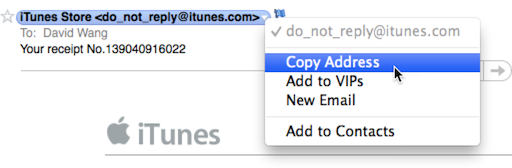
In recent versions of Apple Mail (Snow Leopard onwards to be exact) choosing Copy Address from a contact’s contextual menu would put the contact’s name with the email address in brackets, instead of just the email address. So from the example above, you would get the following on your clipboard:

iTunes Store <do_not_reply@itunes.com>

This is not really helpful when  you really just want to copy the email address, and not fiddle with deleting the extraneous information. Longtime Apple Mail users might also prefer the behavior from versions before Snow Leopard. Luckily there’s an easy way to change the default behavior and only copy the email address without the contact’s name.

Start by quitting the Mail app. Then launch Terminal and type (or copy and paste) the following command (all on 1 line):

defaults write com.apple.mail AddressesIncludeNameOnPasteboard -boolean No

Now when you open up Mail again, copying and address will only give you the email address without the contact’s name. Yay!

If you want to revert back to the default behavior, quit Mail and run the command in Terminal again but switch the last word to Yes.

Sitting is Killing You

Click the thumbnail above to view the complete, full sized infographic

This is why I switched to a standing desk. The infographic is definitely worth a read, and after that perhaps you will consider standing with me too?

Hacking Together A DIY IKEA Standing Desk

Update: I’m now using an upgraded hack. See my Custom DIY standing desk with Ergotron LX Dual Stacking Arm

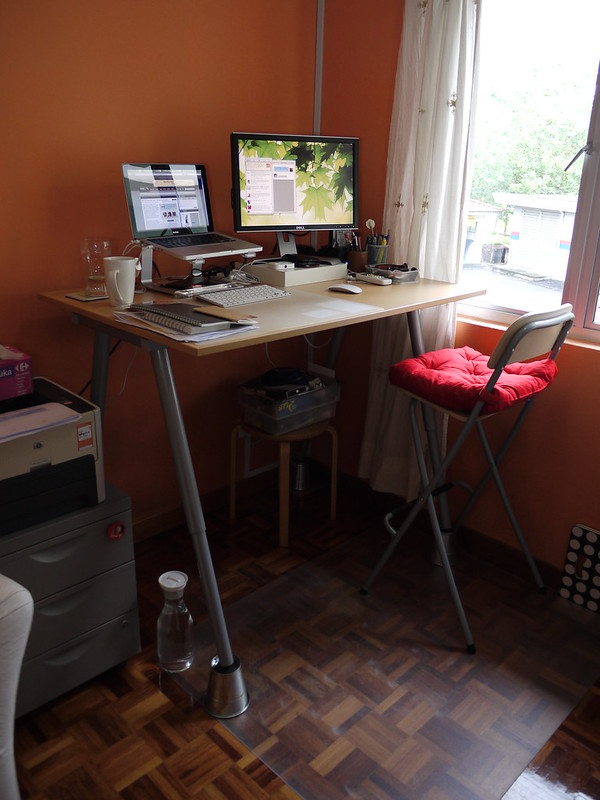
I’m standing as I’m typing this. I’m standing because I’ve got a new desk–a standing desk.

IKEA DIY standing desk

Why Use a Standing Desk?

One of the first questions I get when I tell people I’m now standing while working is why?

The biggest motivation for me was because I didn’t want to sit on my ass the whole day. I feel that sitting for long periods has been contributing to my growing waistline and makes my work day very sedentary.

Standing on the other hand, takes a significant physical effort. At the end of my first week using the desk, my calves are sore, and I can feel my hamstrings and glutes at work. I can’t slouch while standing so my shoulders and back muscles are activated as well.

Building My DIY IKEA Standing Desk

I’ve never really stood up while working, so I wasn’t sure if I could really make the switch. So ideally my desk had to revert back to a sitting desk if standing and working didn’t work for me. One solution was to get an ergo desk–there’s Geekdesk in North America and I saw a pretty good one in The Curve in Mutiara Damansara–but they were way beyond my budget.
Continue Reading

Professional Twitter

Twitter fangirl Anne Zelenka of Web Worker Daily writes about Eight ways Twitter is used professionally.

workhack

WorkHack.com – easy to use, minimal distraction, no sign-up to-do lists

Follow

Get every new post delivered to your Inbox

Join other followers:

%d bloggers like this: